How to brand the Microsoft Teams lobby for external guests
The Teams lobby is good at one job: holding people until someone admits them. Branding it requires a Teams Premium license, and even then you get a logo, an image, and a color. This guide explains what the Teams lobby does and how to give prospects and clients a fully branded waiting room before a Teams call.
The short answer
- The standard Teams lobby controls who waits and who joins directly. It shows no organizer branding.
- Teams Premium meeting themes add your logo, a brand image, and a brand color to the pre-join and lobby screens. Only organizers with a Premium license can create themed meetings.
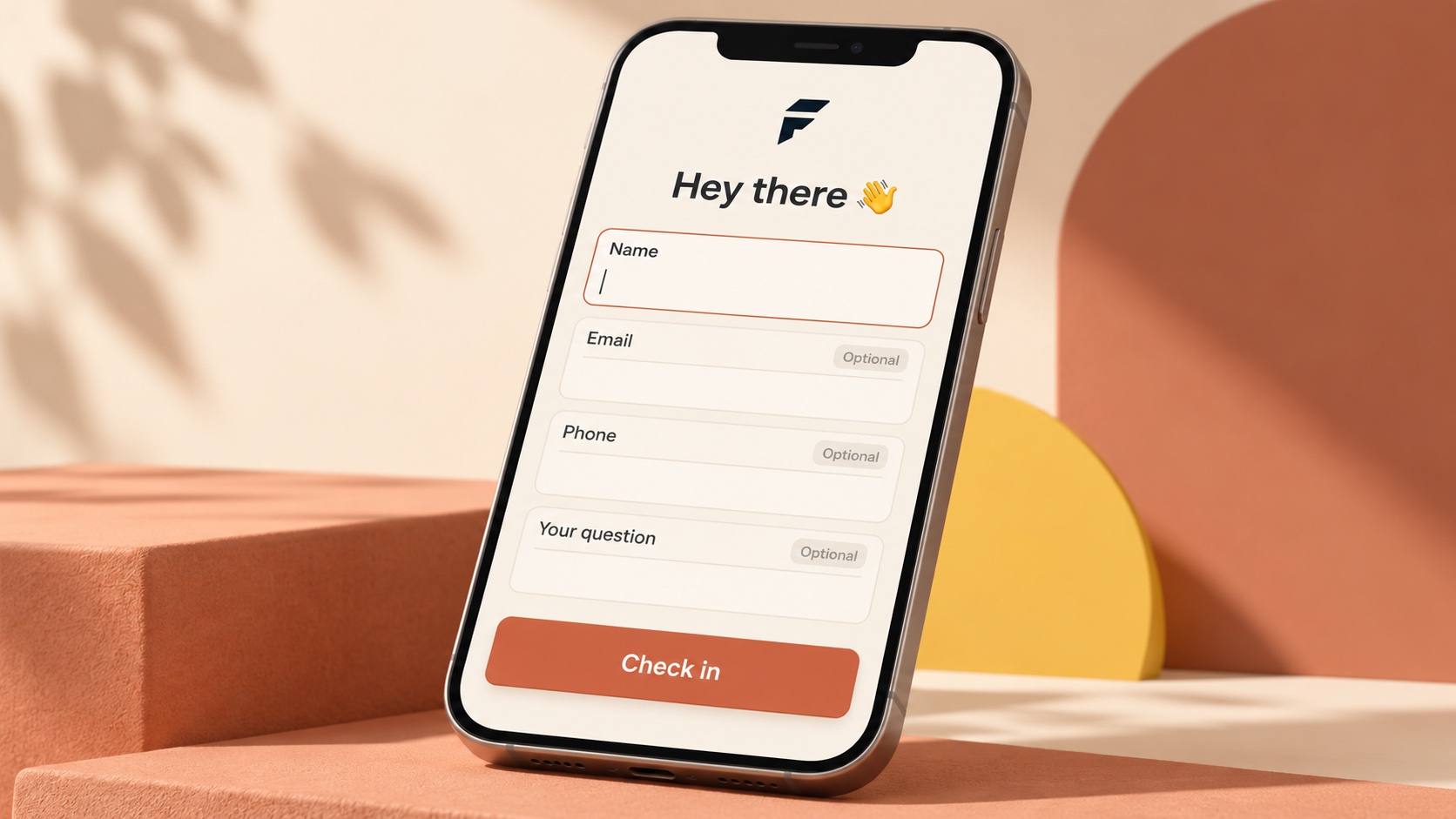
- Lobbi gives guests a branded page before the call with your content, an optional check-in, and arrival alerts in Slack or email, with no Teams Premium license needed.
- Today you add your Teams meeting link to a lobby and Lobbi sends guests to it when you admit them. A native Teams connection is on the way.
How does the Microsoft Teams lobby work?
In Teams, the lobby is controlled by the Who can bypass the lobby setting. Microsoft’s admin documentation lists options ranging from everyone, through people in your organization, trusted organizations, and guests, down to only organizers and co-organizers. Admins set the default in a meeting policy, and organizers can change it for each meeting in Meeting options.
A few related details from Microsoft’s documentation:
- People dialing in by phone go through the lobby by default, and admins can change this.
- Admins can’t lock lobby settings with a normal policy. Enforcing a value requires a meeting template or sensitivity label, both of which need Teams Premium.
- An organizer, co-organizer, or presenter admits people from the lobby inside the Teams meeting.
What Teams Premium branding adds
With Teams Premium, admins can create meeting themes. A theme includes your organization’s logo (light and dark versions), a custom brand image, and a brand color. Microsoft says these appear on key surfaces including the pre-join and lobby screens, and that anyone joining a themed meeting can see the theme, including external and anonymous users.
The limits: only organizers with a Teams Premium license who are assigned a meeting customization policy can create themed meetings, and a theme is a visual skin rather than content. It can’t introduce the person the guest is meeting, show an agenda, or share a case study.
Teams lobby vs Teams Premium vs Lobbi
| Capability | Standard Teams lobby | Teams Premium theme | Lobbi in front of Teams |
|---|---|---|---|
| Logo and brand color | No | Yes | Yes, generated from your website |
| Content while waiting | No | Brand image only | Welcome, host card, video, agenda, links, and more |
| Different look per call type | No | Set by admin themes | Separate lobby for each call type or client |
| Check-in questions | No | No | Optional name, email, phone, and your own question |
| Arrival alerts | Inside the meeting | Inside the meeting | Lobbi dashboard, email, and Slack |
| License needed | Teams | Teams Premium for organizers | Free Lobbi plan |
Why external calls need more than a lobby
Inside a company, the lobby is mostly a security setting. With prospects and clients, it’s also the first thing they see of you. An external guest waiting in a plain Teams lobby has no idea whether you’ve seen them arrive or how long they’ll wait. A branded waiting room tells them they’re in the right place, shows who they’re about to meet, and gives them something worth reading while you finish your last call.
How to use Lobbi with Microsoft Teams today
- Create a lobby by pasting your website URL. Lobbi’s AI builds four branded designs to choose from.
- Add your Teams meeting link as the lobby’s meeting link in its settings.
- Share your lobby link with guests instead of the raw Teams link.
- Get notified in Lobbi, by email, or in Slack when they check in.
- Admit them. Lobbi sends the guest to your Teams meeting.
You can also leave the meeting link empty and paste a link at the moment you admit someone. A native Teams integration, where Lobbi creates the Teams meeting for you, is coming as part of Lobbi Pro.
Frequently asked questions
Do I need Teams Premium to use Lobbi?
No. Lobbi works with any Teams meeting link. The branding lives in Lobbi, so no Premium license or admin theme is involved.
Will guests wait twice, in Lobbi and in the Teams lobby?
They can, depending on your Teams lobby setting. For external calls that already go through Lobbi, you may choose to let invited people bypass the Teams lobby so guests go straight into the call when you admit them.
Does the guest need a Microsoft account?
Not to wait in Lobbi, which opens in any browser. Joining the Teams meeting works the way it normally does for external guests.
Is Lobbi free?
Yes, the free plan includes two branded waiting rooms with no card required. See pricing.
Brand the wait, without a Premium license.
Build a branded lobby from your website and point it at your Teams link.