Google Meet waiting room: how to give guests a branded welcome
Google Meet’s waiting room holds guests until you admit them, but it can’t show a logo, brand colors, a welcome, or any page content. It’s available on some paid Workspace plans and is off by default; on other plans, guests see Meet’s standard “Ready to join?” screen until someone lets them in.
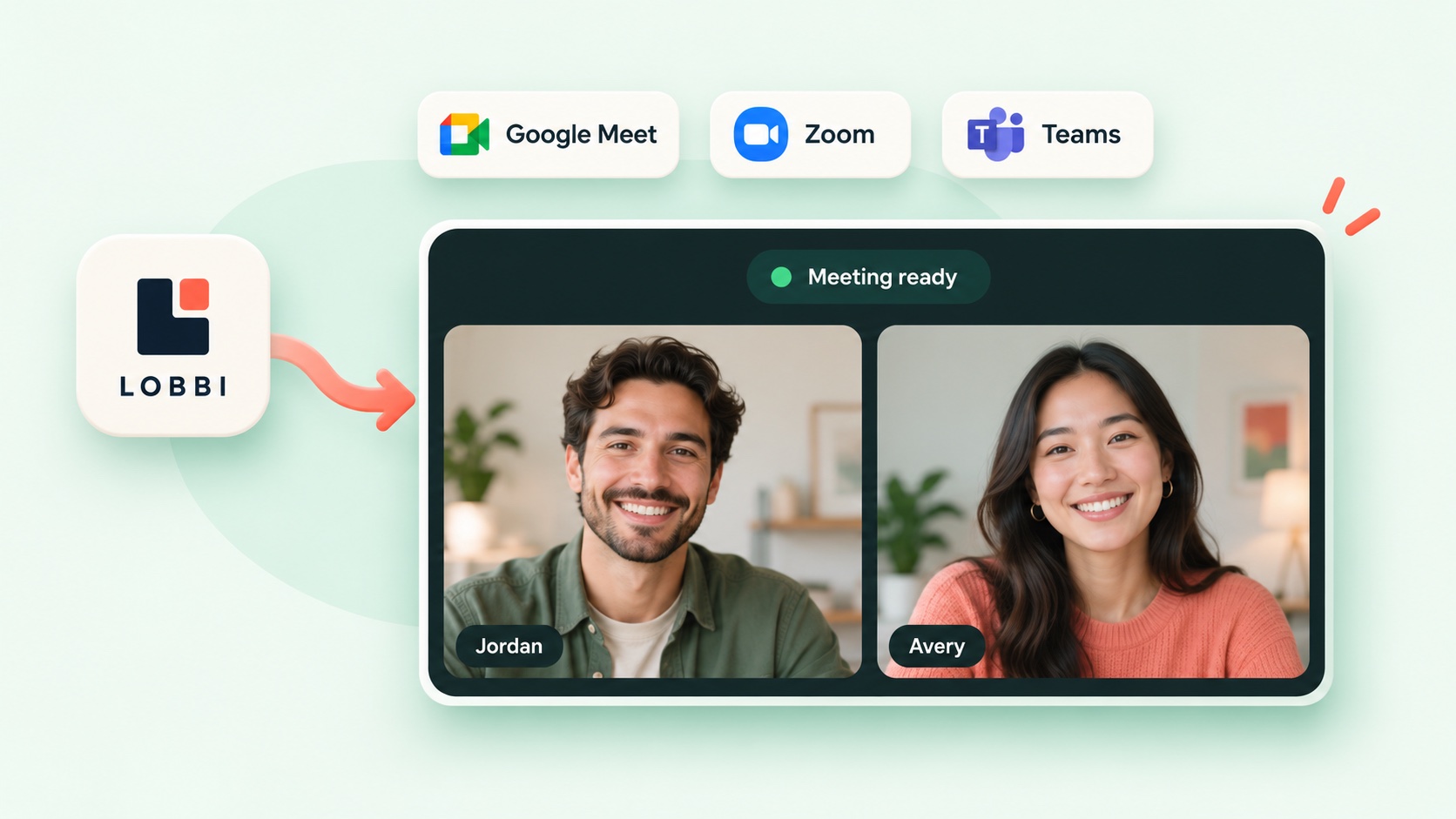
Lobbi adds a branded waiting room in front of Meet: guests open one link and see a welcome built for them. When you admit them, Lobbi creates the Meet link and sends you both into the call.
The short answer
- Google Meet has a native waiting room on some paid Google Workspace plans, but Google’s documentation describes no way to add a logo, brand colors, video, or page content to it.
- On other plans, guests just see Meet’s standard “Ready to join?” screen until someone admits them.
- Lobbi puts a branded page in front of the call. When Google Meet is connected, Lobbi creates the Meet link at the moment you admit a guest and sends you both into it.
- Google Meet is included on Lobbi’s free plan.
What does Google Meet’s own waiting room do?
Google introduced waiting rooms for Meet in October 2025. According to Google’s Workspace help documentation, a waiting room lets the host:
- Turn on a waiting room when creating or editing a Google Calendar event.
- Admit people one at a time, or bring everyone in automatically when a host joins.
- See the queue of people waiting outside the main meeting.
- Send one-way chat messages from the meeting to everyone in the waiting room.
The feature is available on Business Standard and Business Plus, Enterprise Standard and Enterprise Plus, Enterprise Essentials and Enterprise Essentials Plus, Education Plus, the Teaching and Learning add-on, and Workspace Individual. It is off by default, so a Workspace admin has to enable it first.
What Google doesn’t describe is any way to customize what waiting guests see. There’s no setting for a logo, brand colors, a welcome video, an agenda, or links to your work. The waiting room is a holding area, not a first impression.
Why the default Meet waiting screen costs you
For a sales demo, a discovery call, or a client consultation, the minutes before the call are the first thing a guest experiences. A grey screen that says “Ready to join?” tells them nothing about who they’re meeting or why it matters. If you’re a few minutes late, they have no way to know you’re on your way.
A branded waiting room fills that gap. It confirms they’re in the right place, introduces the person they’re about to meet, and gives them something useful to look at while they wait.
How Lobbi works with Google Meet
- Create a lobby. Paste your website URL and Lobbi’s AI pulls in your logo, colors, imagery, and messaging to suggest four branded designs. Pick one and adjust it, or start from scratch.
- Connect Google Meet. In Lobbi, open Integrations and connect your Google account. You only do this once.
- Share your lobby link. Every lobby gets one permanent link. Put it in your calendar invites, your booking page, or your email signature. It works for unlimited meetings.
- Get notified when someone arrives. When a guest checks in, Lobbi tells you in the Lobbi dashboard, by email, or in Slack.
- Let them in. One tap admits the guest. Lobbi creates a fresh Google Meet link at that moment and takes you both into the call.
Because Lobbi creates the Meet link when you admit someone, you don’t need to paste a Meet link into every invite. If you’d rather use a fixed link, you can set one as the lobby’s meeting link and Lobbi will use that instead.
Google Meet waiting room vs Lobbi
| Capability | Meet’s waiting room | Lobbi in front of Meet |
|---|---|---|
| Your logo and brand colors | Not documented | Yes, generated from your website |
| Content while waiting | Meeting attachments | Welcome, host card, video, agenda, links, and more |
| Check-in details | Display name only | Optional name, email, phone, and your own question |
| Arrival alerts | Inside the Meet call | Lobbi dashboard, email, and Slack |
| Running-late message | One-way chat from the call | Shown in the room; can appear automatically after a wait you choose |
| Workspace plan needed | Business Standard or higher (or listed editions) | Any Google account that can create Meet links |
| Separate rooms per call type | Set per calendar event | Multiple lobbies, each with its own permanent link |
What your guest sees
Your guest opens your lobby link in their browser. No account and no download are needed to wait. They see your brand, a welcome addressed to them, the host card for the person they’re meeting, and whatever content you’ve added for this kind of call: a short video, a product snapshot, an agenda, a case study, or useful links.
If you ask for check-in details, they enter them first. If you don’t, they go straight in. When you admit them, they move into your Google Meet call.
Frequently asked questions
Can I add my logo to the Google Meet waiting room itself?
Google’s help documentation for Meet waiting rooms doesn’t describe any branding options. Lobbi gives guests a branded page before they reach Meet, so your logo and content appear without changing anything in Google Workspace.
Do I need Google Workspace to use Lobbi with Meet?
No. Lobbi needs a Google account that can create Google Meet links. You don’t need one of the Workspace editions that include Meet’s native waiting room.
Does the call happen inside Lobbi?
No. Lobbi handles the welcome and the wait. The call itself runs in Google Meet, exactly as it would normally.
Can I still turn on Meet’s waiting room as well?
You can, but it’s usually unnecessary. Guests already wait in Lobbi, and you choose when to admit them, so a second waiting step inside Meet just adds a delay.
Is it free?
Yes. The free plan includes two branded waiting rooms, you and one teammate, waiting room design and customization, Google Meet, and Slack notifications. No card is required. See pricing.
Give your next Meet guest a better first minute.
Build a branded waiting room from your website in seconds and connect Google Meet once.