How to add a branded waiting room to your Calendly meetings
Calendly gets the meeting booked. What happens when the guest actually shows up is still a grey video-call screen. Put your Lobbi link in your Calendly event as the location, and every guest who books arrives in a branded waiting room instead.
The short answer
- Create a lobby in Lobbi and copy its link.
- In Calendly, open your event type, set Location to Custom, and paste the Lobbi link.
- Calendly adds the link to every calendar invite. At meeting time, guests click it and land in your branded waiting room.
- When you admit them, Lobbi takes you both into Google Meet, or into the Zoom or Teams link you’ve set.
Why put a waiting room between Calendly and your call?
The gap between booking and the call is where prospects cool off. By meeting time, your guest has forgotten some of why they booked. A branded waiting room reminds them: your logo and colors, the person they’re meeting, what you’ll cover, and a piece of proof worth a look. It also tells you the moment they arrive, so nobody sits alone on a call wondering if they have the right link.
What is a Lobbi link?
Every lobby you create in Lobbi has one permanent link in the form in.mylobbi.link/room/your-lobby. It works for unlimited meetings, so you set it once in Calendly and never touch it again. You can change the lobby’s design and content at any time without changing the link.
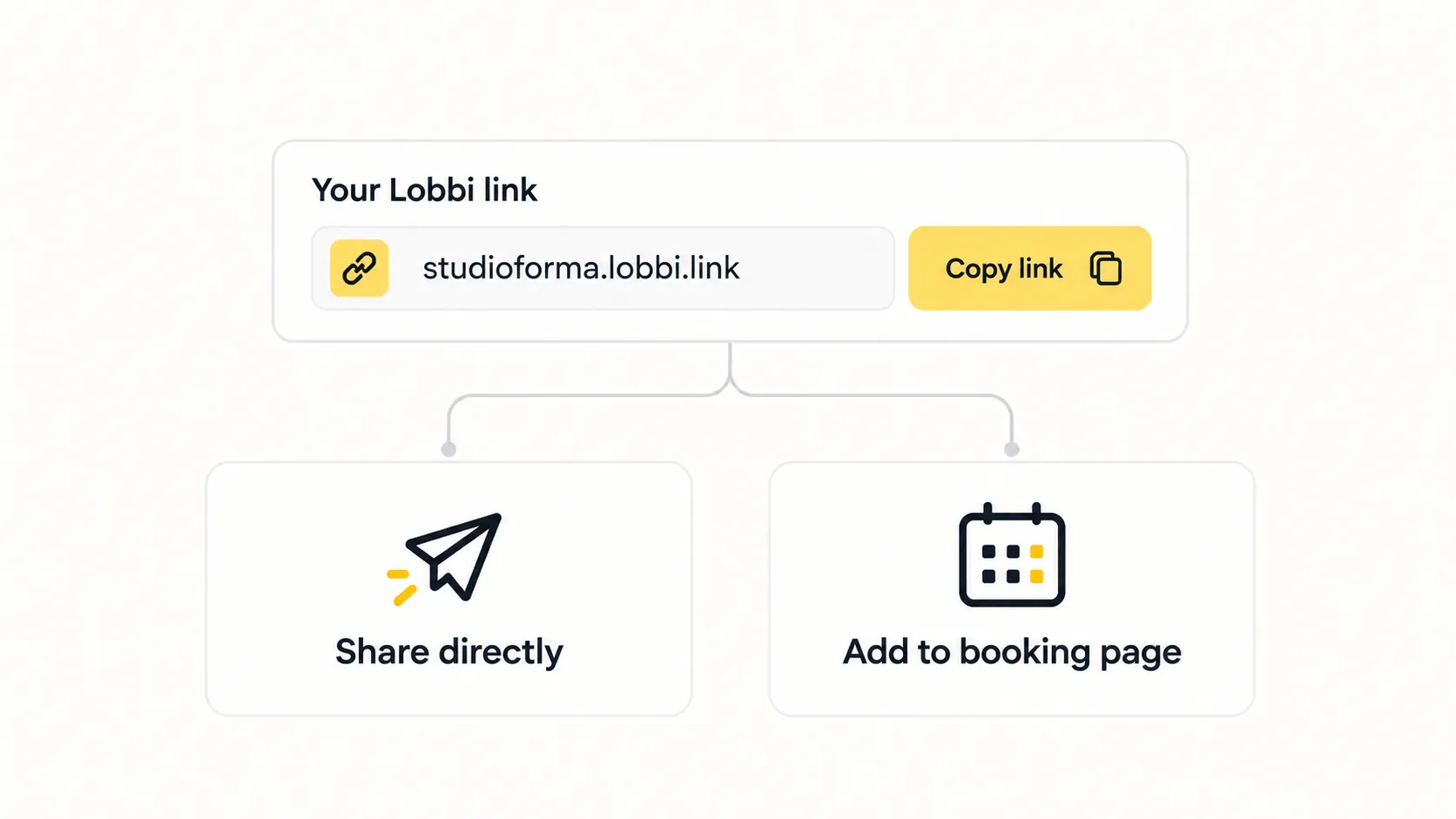
Step by step: set your Lobbi link as the Calendly location
- Create your lobby. Sign up for Lobbi, paste your website URL, and pick one of the four branded designs Lobbi’s AI builds for you.
- Copy the lobby link from the lobby’s page in Lobbi.
- Open the event type in Calendly that you want to use, such as your demo or discovery call.
- Set the location. Under Location, choose Custom and paste your Lobbi link. Calendly lets you show it on the booking page or only after booking. Showing it after booking keeps the booking page clean.
- Save. Calendly includes your link in the calendar invite for every new booking.
Calendly’s own help center describes this Custom location as the way to use a permanent link from a tool it doesn’t integrate with directly.
Where does the actual video call come from?
- Google Meet: connect Google Meet in Lobbi once. When you admit a guest, Lobbi creates a fresh Meet link and sends you both into it. You don’t need a Meet link in the Calendly invite at all.
- Zoom or Microsoft Teams: add your Zoom or Teams meeting link to the lobby’s settings, and Lobbi sends guests to it when you admit them. Native Zoom and Teams connections are on the way.
Either way, remove Calendly’s own video conferencing location from the event so guests don’t receive two different links.
Cal.com, HubSpot Meetings, and other booking tools
The same approach works with any booking tool that lets you set a custom location or meeting link. In Cal.com, add a link-based location and paste your Lobbi link. In HubSpot Meetings, put your Lobbi link in the meeting location. The guest gets the link in their invite, and the rest works exactly as it does with Calendly.
Skip check-in for guests you already know
If you send your lobby link directly to someone, you can add their name and email to the end of the link, for example ?name=Alex%20Rivera&email=alex%40example.com. With check-in on and auto check-in enabled (the default), Lobbi checks them in automatically when they open it, so they skip the form and you’re notified straight away.
Frequently asked questions
Does Lobbi replace Calendly?
No. Calendly handles scheduling. Lobbi handles the moment the guest arrives for the call. They work side by side.
Can I use different lobbies for different Calendly event types?
Yes. Create a lobby for each call type, such as a demo lobby and a discovery lobby, and paste each link into the matching event type.
What if a guest opens the link early?
They wait in your branded room and can explore your content. You’re notified when they check in. You can also let guests admit themselves after a set number of minutes, from 1 to 120, so nobody waits forever.
How much does it cost?
Lobbi’s free plan includes two branded waiting rooms and needs no card. See pricing.
Booked is good. Arrived and impressed is better.
Get your Lobbi link in a few minutes and paste it into Calendly.